
Kling AI Motion Control: A Complete Guide for Video Creators in 2026
A practical walkthrough of Kling AI motion control features in 2026: camera path tools, subject tracking, speed controls, and how to produce cinematic AI video shots without a production crew.
Motion control is one of the most powerful and least understood features in Kling AI. While most users treat the platform as a simple text-to-video generator, the motion control layer lets you define camera trajectories, control subject movement speed, anchor scene elements, and produce shots that previously required physical rigs or complex compositing. This guide covers every motion control option available in 2026 and how to apply them in real production workflows.
What Kling AI motion control actually does
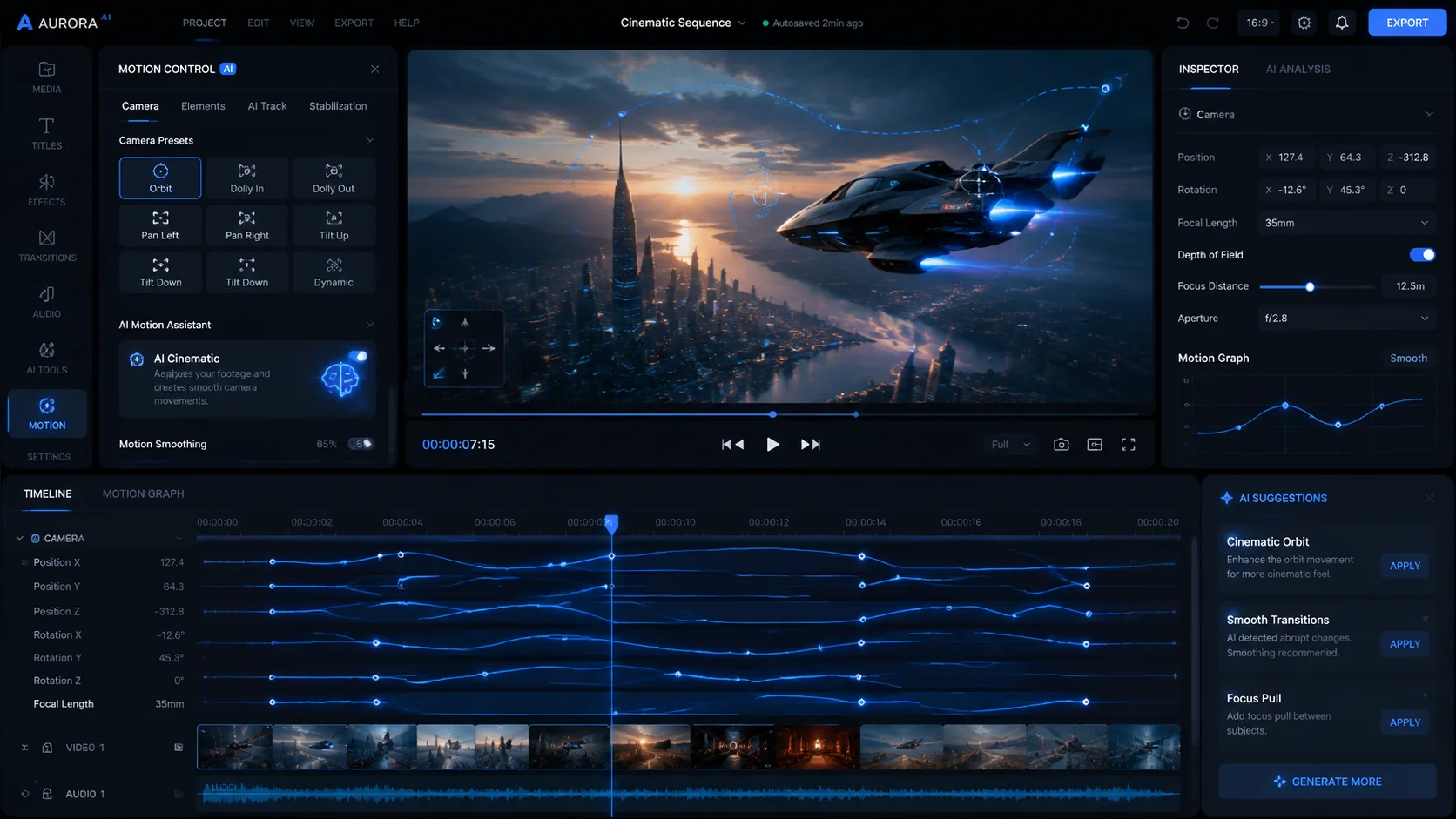
Motion control in Kling AI refers to a set of parameters that govern how the camera and subjects move within a generated video clip. Unlike a simple text prompt that describes a scene, motion control inputs define trajectory, speed, and spatial relationship between camera and subject across the clip duration. The system translates these inputs into generated motion that remains consistent throughout the video rather than drifting or changing unpredictably mid-clip.
The practical benefit is repeatability. When you define a dolly-in move with a specific speed curve, you can regenerate similar camera behavior across multiple clips in the same campaign. This matters enormously for marketing teams who need consistent visual language across ten or fifteen variants of the same ad, where the creative variable being tested is the hook or the offer rather than the camera behavior.
Camera path controls
Kling AI supports several camera movement types through its motion control interface. Pan controls move the camera horizontally across the scene. Tilt moves it vertically. Zoom controls simulate lens compression or expansion toward or away from the subject. Roll rotates the camera around the lens axis, useful for dynamic social content. Push and pull moves simulate physical dolly movement into or out of the scene.
The most cinematic results typically combine two camera movements with a clear speed curve. A slow dolly-in paired with a slight upward tilt creates the classic product reveal shot used in high-end commercial advertising. A sideways pan combined with a moderate zoom produces the tracking feel used in fast-paced social content. The key is to specify movements that complement the scene description rather than fight it. If your prompt describes a static object on a table, a dolly-in supports the scene. A rapid pan would create a confusing disconnect between the described environment and the camera behavior.
Subject motion and speed controls
Beyond camera movement, Kling AI offers subject-level motion controls that define how people or objects within the frame move. Speed multipliers let you slow motion or accelerate action within the clip. Subject tracking keeps the camera centered on a moving subject even when the background changes. Gesture emphasis options increase the expressiveness of hand and facial movements for talking-head content.
For UGC-style ad production, subject motion control is especially valuable for lip sync and presenter clips. Setting a natural, moderate gesture speed with minimal camera movement produces the calm, authoritative delivery style that tends to perform well in direct-response ad formats. Increasing gesture energy while keeping camera movement slow creates the enthusiastic product demonstration style used effectively in impulse-purchase categories like beauty, fitness, and kitchen gadgets.
Practical motion control presets for ad production
Rather than starting from scratch with every generation, establishing a set of production presets saves significant time and creates visual consistency across a campaign. Three presets cover most short-form ad scenarios. A product reveal preset uses a slow dolly-in at low speed with a slight upward tilt and centered framing on the product. A talking presenter preset uses minimal camera movement, natural subject gesture speed, and a slight depth of field emphasis to isolate the speaker from the background. A lifestyle action preset uses a medium pan with increased subject motion speed and dynamic framing offset to suggest energy and movement in fitness or outdoor categories.
Document these presets as named configurations within your team's production notes. When a new brief arrives, selecting the appropriate preset gives production a starting point that is already aligned with the campaign's visual tone rather than requiring a full prompt rebuild from scratch.
Common motion control mistakes to avoid
The most common mistake is combining too many simultaneous movements. Specifying pan plus tilt plus zoom plus fast subject motion at the same time usually produces disorienting output. The generation model has to reconcile multiple competing spatial instructions, which often results in inconsistent or jerky motion that appears unnatural. Start with one primary camera movement, test the output, and then add secondary motion only if the first version is stable and clear.
Another frequent error is mismatching motion style to subject type. A fast, energetic camera move on a static product in an empty frame looks odd because the motion implies action that does not exist in the scene. Conversely, a very slow, static camera on a fast-moving subject makes the clip feel disconnected and unfinished. Match motion intensity to the energy level that your prompt describes in the scene itself.
Motion control and platform aspect ratio
Motion control parameters interact with aspect ratio in ways that affect the final output significantly. For vertical 9:16 content destined for TikTok or Instagram Reels, upward tilts and slow dolly-ins are more effective than horizontal pans, because the narrow vertical frame limits how far a pan can travel before reaching the edge. For 16:9 horizontal content used in YouTube pre-roll or CTV ads, horizontal camera movement has more room to breathe and tends to produce more polished results.
Before running a full production batch, always test your motion control preset on the target aspect ratio with a short representative clip. This catches framing and movement issues before you commit generation credits to a larger batch of variants.
Integrating motion control into a repeatable production workflow
Motion control works best when it is treated as a creative decision made at the brief stage, not a technical parameter adjusted at render time. When writing a production brief, include a motion direction field: specify camera style, subject energy level, and whether the shot should feel static, dynamic, or cinematic. This ensures that the person generating the video understands the intended visual language before generating the first clip rather than discovering the mismatch after reviewing the output.
Teams that standardize motion direction as a brief element can build a library of motion control configurations mapped to campaign types. Product launches use one set of configurations. Educational explainers use another. Testimonial-style UGC uses a third. Over time, this library accelerates brief-to-first-render speed and makes the visual output more predictable and consistent across all campaigns.
How to apply this guide in makeads
Use this guide as a practical checkpoint for planning AI UGC videos, comparing creative angles, and deciding which parts of your workflow should be scripted, generated, reviewed, localized, and tested first.
The most useful next step is to translate the advice into one production brief: define the audience, the opening hook, the proof moment, the actor style, subtitle requirements, and the metric you will use to decide whether a video variant is worth scaling.
Related focus areas for this topic include Kling AI, Motion Control, AI Video, Video Production. If you are building a campaign library, connect this guide with your pricing assumptions, platform policy checks, and localization plan before creating the final export.