
How to Download Sora Videos in 2026: A Complete Step-by-Step Guide
Learn how to download Sora 2 videos on desktop and mobile, including resolution options, file formats, third-party tools, and troubleshooting common download issues.
OpenAI's Sora 2 has become one of the most powerful AI video generation tools available, but many users run into a common frustration: generating a stunning clip is one thing, but actually downloading it for use in campaigns, social media, or client work is another. This guide covers every method to download Sora videos in 2026, from built-in export options to third-party workflows.
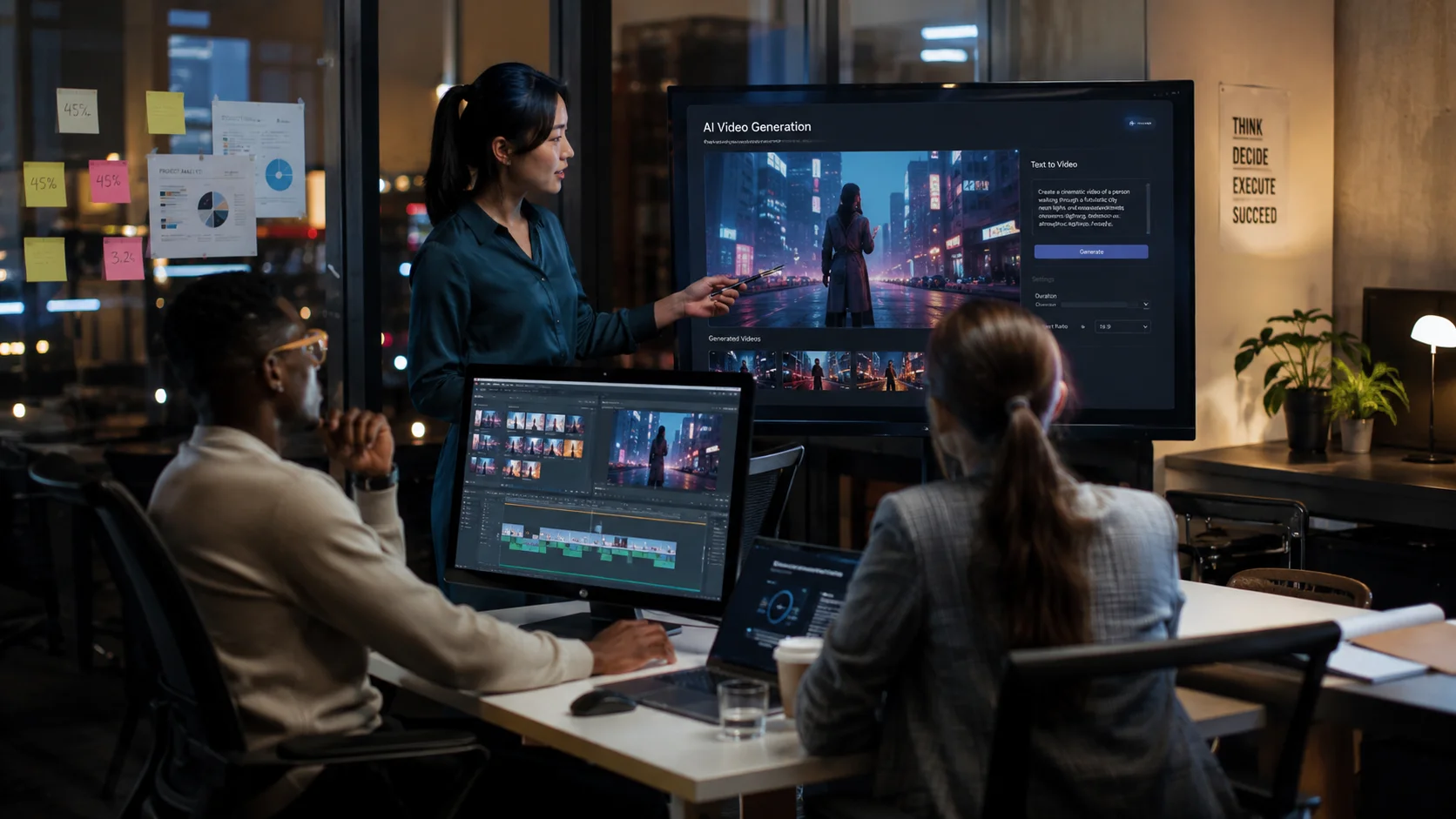
How to download Sora videos directly from the platform
The most straightforward method is to use Sora's built-in download functionality. After generating a video in Sora 2, navigate to your library or the specific video page. Each generated clip includes a download button, typically represented by a downward arrow icon in the video player controls or beneath the preview window. Clicking it will trigger a download of the video file to your default download folder.
Sora 2 supports multiple resolution tiers for download. If you generated at 480p, 720p, or 1080p, the downloaded file will match that resolution. For Pro subscribers, 1080p downloads are available by default. The downloaded file format is typically MP4, which is compatible with most video editors, social media platforms, and ad managers. If you need a different format, you will need to convert it using a video converter tool or your editing software.
Downloading Sora videos on mobile devices
Sora is primarily a web-based platform, which means you can access it from any modern mobile browser. On iOS and Android devices, the download process is similar: open the Sora web app, navigate to your video library, and tap the download button. The video will save directly to your device's photo gallery or downloads folder. However, mobile downloads may default to a lower resolution to save bandwidth. If you need full-resolution files, it is better to download from a desktop browser or use a cloud sync workflow.
Third-party tools and browser extensions for Sora video download
Several third-party tools have emerged that claim to simplify Sora video downloads or add batch download capabilities. Some browser extensions can detect video elements on the Sora page and offer one-click downloading. Video downloader software like 4K Video Downloader or JDownloader can sometimes capture streaming video URLs from web pages. However, exercise caution with third-party tools. Many violate OpenAI's terms of service, may capture lower-quality versions, or could introduce security risks. Always prefer the official download method when available.
Common Sora video download issues and fixes
Users frequently report several download problems. The most common is a slow or stalled download, which is usually caused by network congestion or large file sizes at high resolutions. Try switching to a wired connection or downloading during off-peak hours. Another frequent issue is the download button being grayed out or missing, which typically means the video is still processing or your subscription tier does not support downloads at that resolution. Upgrading to a Pro plan or waiting for processing to complete usually resolves this.
Sometimes downloaded files appear corrupted or fail to play. This can happen if the download was interrupted. Clear your browser cache, restart the download, and verify the file size matches what is shown on the Sora platform. If you consistently encounter issues, try using a different browser. Chrome and Edge tend to handle large file downloads more reliably than Safari or Firefox for Sora's web interface.
Managing downloaded Sora videos for production workflows
Once you have downloaded your Sora videos, organization becomes important. Create a consistent file naming convention that includes the project name, version number, hook angle, and date. This makes it easier to track which variants are in testing and which have been approved. Store original downloads in a cloud folder like Google Drive or Dropbox so team members can access the source files without re-downloading from Sora.
For teams producing UGC ads at scale, the download step is only one part of a larger production pipeline. After downloading Sora-generated clips, many teams import them into editing software for trimming, subtitle addition, color grading, or combining with other footage. Platforms like makeads streamline this entire flow by keeping script writing, AI actor selection, video generation, dubbing, subtitle creation, and export within a single workflow. Instead of downloading from multiple tools and stitching clips together manually, you can produce ready-to-publish UGC video ads directly from the platform, which saves significant time when running weekly creative testing cycles.
Sora video download best practices summary
- Always use the official download button for the highest quality file.
- Download at the highest resolution your subscription tier supports for production use.
- Verify file integrity after download before importing into your editing workflow.
- Organize files with a consistent naming scheme for team collaboration.
- Consider a dedicated AI video production platform for end-to-end workflow management.
- Back up original downloads to cloud storage to avoid re-generation costs.
- Check OpenAI's terms of service before using third-party download tools.
Downloading Sora videos is straightforward once you understand the options and limitations. For teams that need to produce dozens of video ads per week, combining Sora's generation capabilities with a platform like makeads that handles the full production workflow can dramatically reduce the time spent downloading, organizing, and editing individual clips.
How to apply this guide in makeads
Use this guide as a practical checkpoint for planning AI UGC videos, comparing creative angles, and deciding which parts of your workflow should be scripted, generated, reviewed, localized, and tested first.
The most useful next step is to translate the advice into one production brief: define the audience, the opening hook, the proof moment, the actor style, subtitle requirements, and the metric you will use to decide whether a video variant is worth scaling.
Related focus areas for this topic include Sora 2, AI Video Export, Video Download, OpenAI Sora. If you are building a campaign library, connect this guide with your pricing assumptions, platform policy checks, and localization plan before creating the final export.